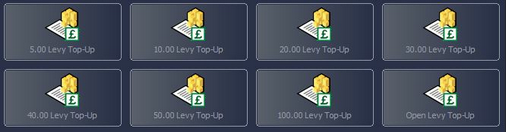
Once the Levy system has been configured, on your Point of Sale Screens you will have a Levy Top-up Button, as in the example below.
When you select this option, a menu similar to the one shown below will be displayed.
Select the amount that the Customer wishes to credit to their Levy Account, e.g. 20.00 Levy Top-up. The following screen will be displayed.
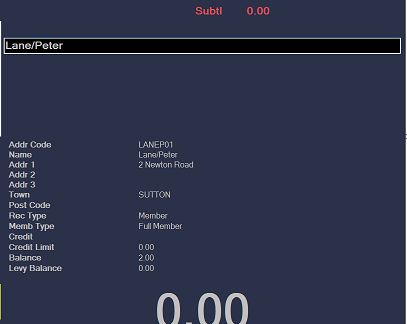
Swipe the Customer's Levy/Membership Card (or type in their Address Code and press F3 Accept). The Customer's Details will be displayed, as in the example below.
If the customer currently has any balance on their levy account, this will be displayed at the bottom of the customer's details, as highlighted above.
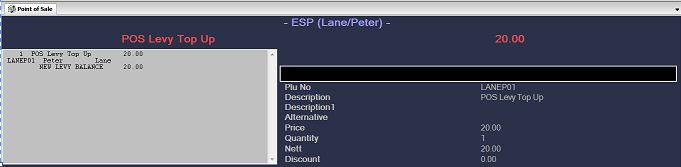
Press F3 Accept to confirm that this is the correct customer and you will be returned to the Point of Sale Transaction window, as shown below.
You can now complete the transaction by selecting the relevant payment method. A receipt will automatically print which should be given to the customer. This will confirm that the money has been added to their levy balance.
|